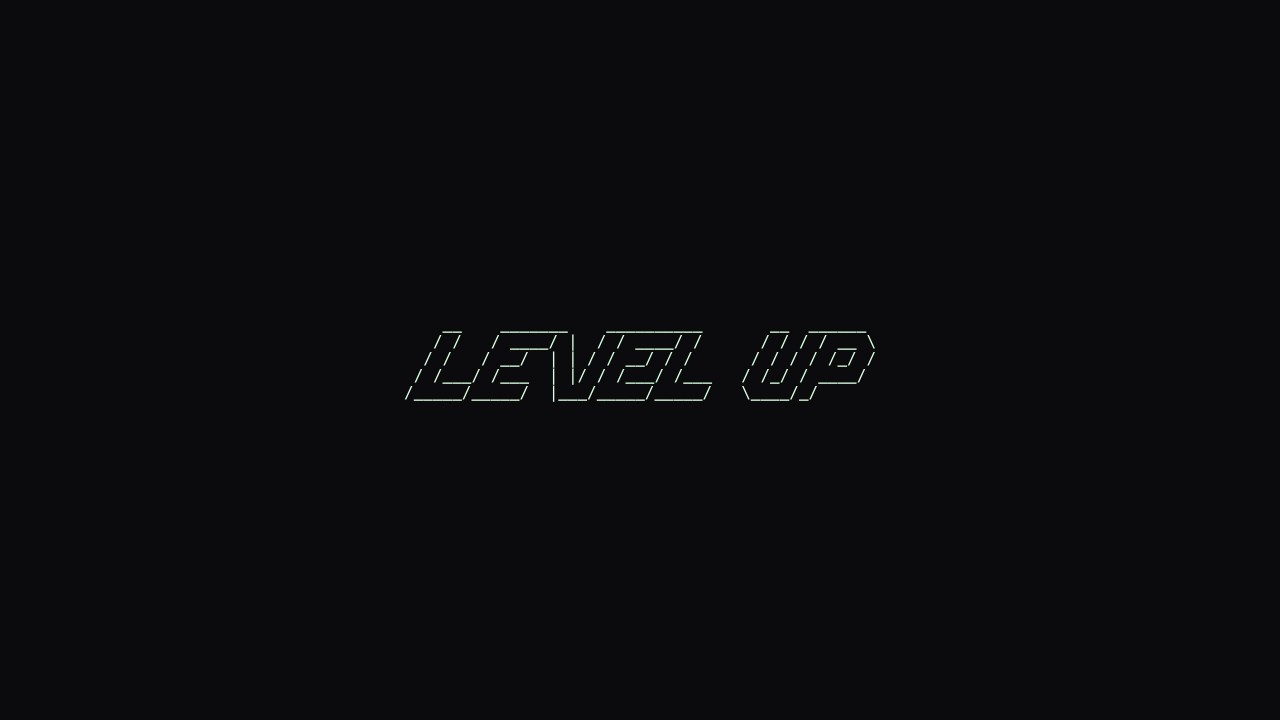
Titles made from real letters
Turn a project name or greeting into a FIGlet banner. Try compact and larger fonts, align the lines, and copy the result into a README or terminal message with its spacing intact.
Try this workflowTurn photos and words into character art, or build a drawing one cell at a time. Explore connected tools for banners, animations, pixel images and photo mosaics, then export the result you want to share.
Fine characters reveal the light passing through each petal. Load it to adjust the settings, or upload your own.
Processed on your device. Plain text uses a monospace font; PNG keeps the chosen colors. SVG keeps the current text and colors in a scalable image.
Real outputs made with this tool. Load a sample, then make it yours.
Basic tools and their normal exports stay free. Subscription effects use no credits; AI rendering uses 1, 2 or 3 credits per attempt.
Basic, Pro and Max include all six effects. No credits are charged. Your free tools and original exports stay available.
Applies to a snapshot scaled to at most 1024 pixels per side and 1 MiB. Video and animation use the current frame. Text remains unchanged.
Create an artwork above to use premium effects.
Finish your current artwork with AI. All accounts can use credits; a subscription is optional. For animation and video, only the current frame is used.
This action uploads a bounded image of your current result to our AI service. Your original text, frames and source remain unchanged. A new render uses the displayed credit cost. Check your credit history for any adjustments after a failed generation.
Create or load an artwork first.
A photograph, a short title and a hand drawn scene need different starting points. Use the matching workspace to keep the useful detail, whether your final piece belongs in a terminal, a document or an image.
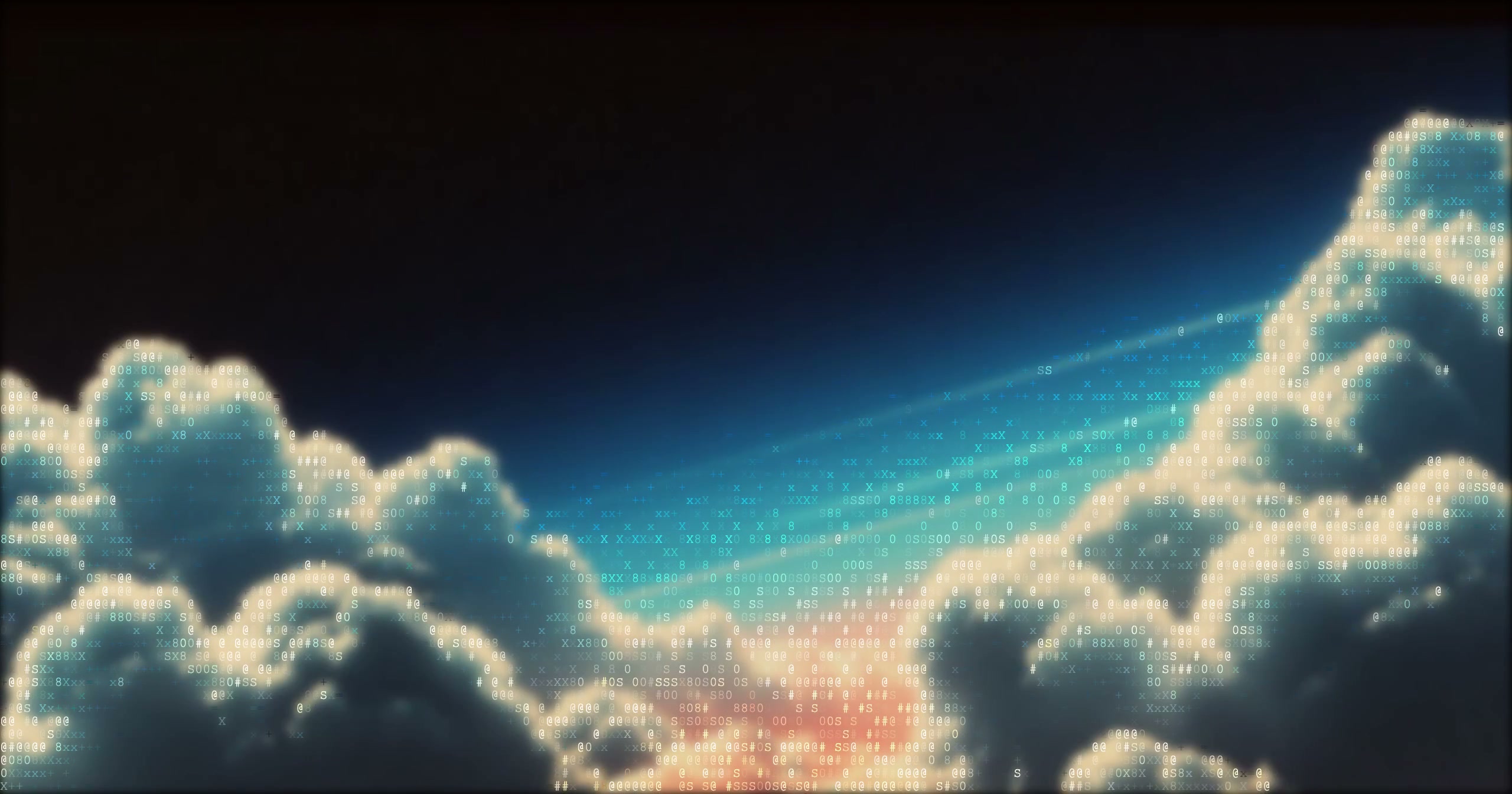
Upload a picture, type a message, or open a drawing workspace. Built in examples help you try a direction before using your own material.
Adjust the character density, pick a banner font, or edit the grid. Compare the preview with your source and refine the parts that matter.
Copy character output for a text destination, download a PNG for visual sharing, or export a GIF from an animation workspace when your idea needs motion.
Turn a project name or greeting into a FIGlet banner. Try compact and larger fonts, align the lines, and copy the result into a README or terminal message with its spacing intact.
Try this workflow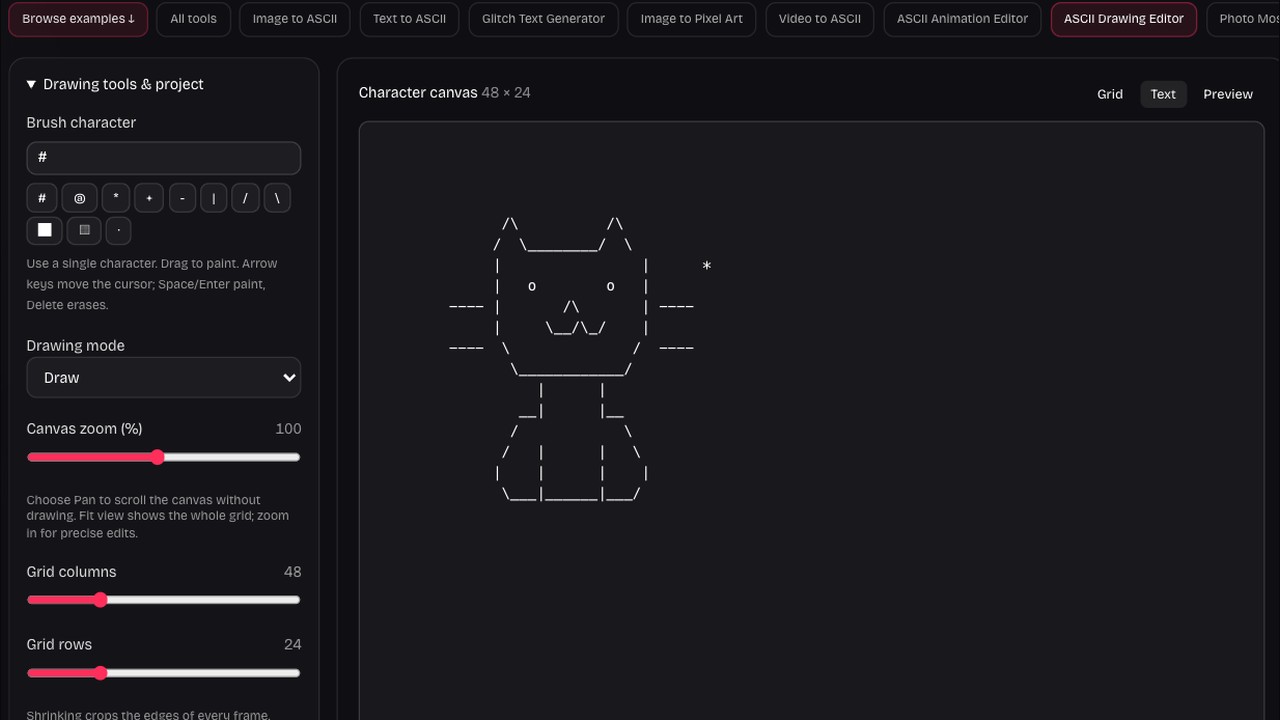
Open the ASCII art maker when you already have an idea for a scene. Brushes, shapes and text editing let you place each character deliberately, with undo available while you experiment.
Try this workflow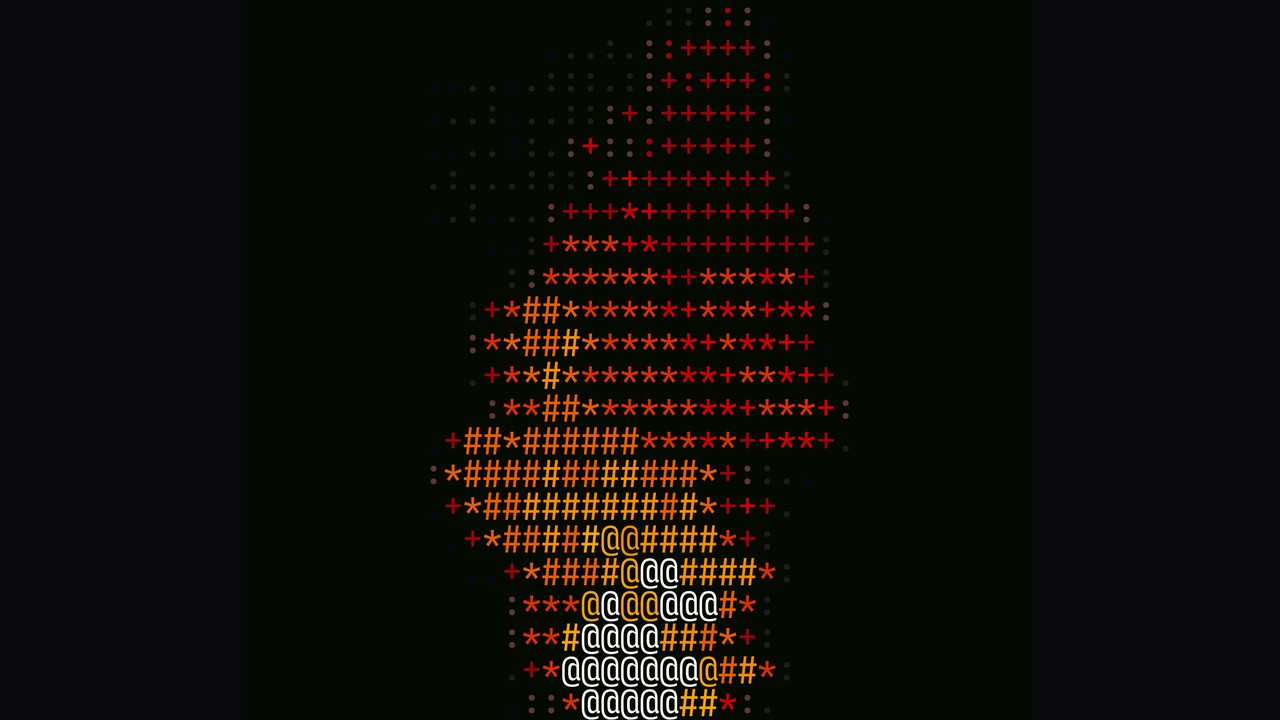
Convert a short video into character frames or build a sequence in the animation editor. Preview the rhythm, edit frames and export a looping GIF for a moving illustration that keeps its character texture.
Try this workflow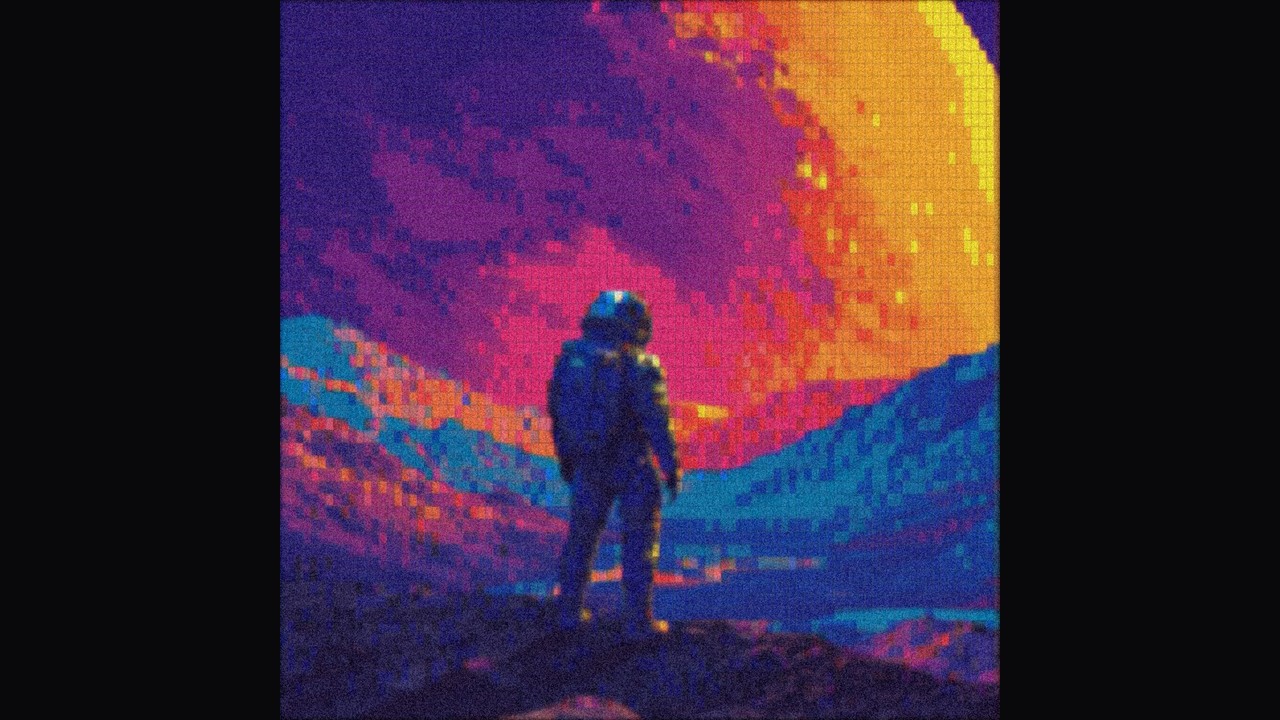
Use the pixel workspace for a blockier interpretation of a photograph. Compare grid sizes, choose a limited palette and try dithering to balance recognizable shapes with the texture of a reduced color image.
Try this workflow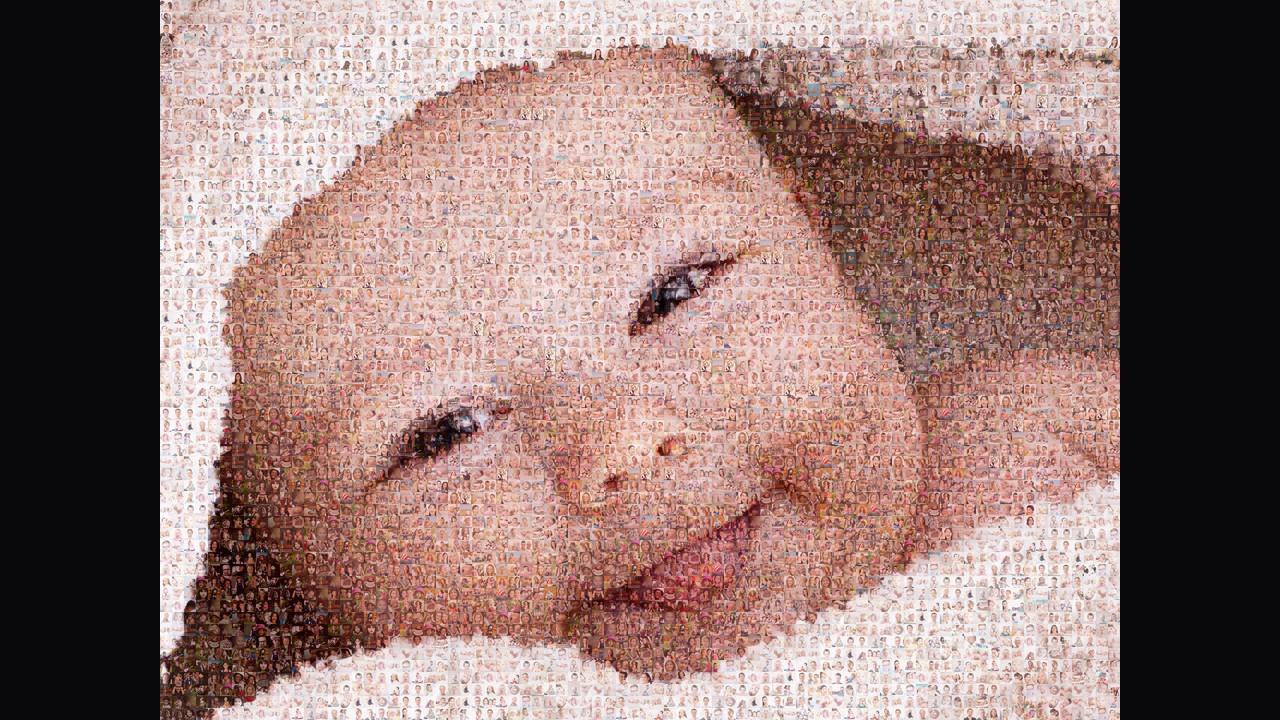
Explore dots for a halftone treatment, or rebuild a target picture from your own collection in the photo mosaic maker. Both routes offer an image output, with different controls for preserving the subject.
Try this workflowAn ASCII generator becomes more useful when the preview is only a starting point. These workspaces give you direct choices about detail, presentation and the format you carry into another application.
Balance readable silhouettes and finer texture with grid controls. Start small, then increase the detail where your destination has enough room.
Correct character output directly instead of accepting every conversion unchanged. Export the edited result before changing settings that regenerate the artwork.
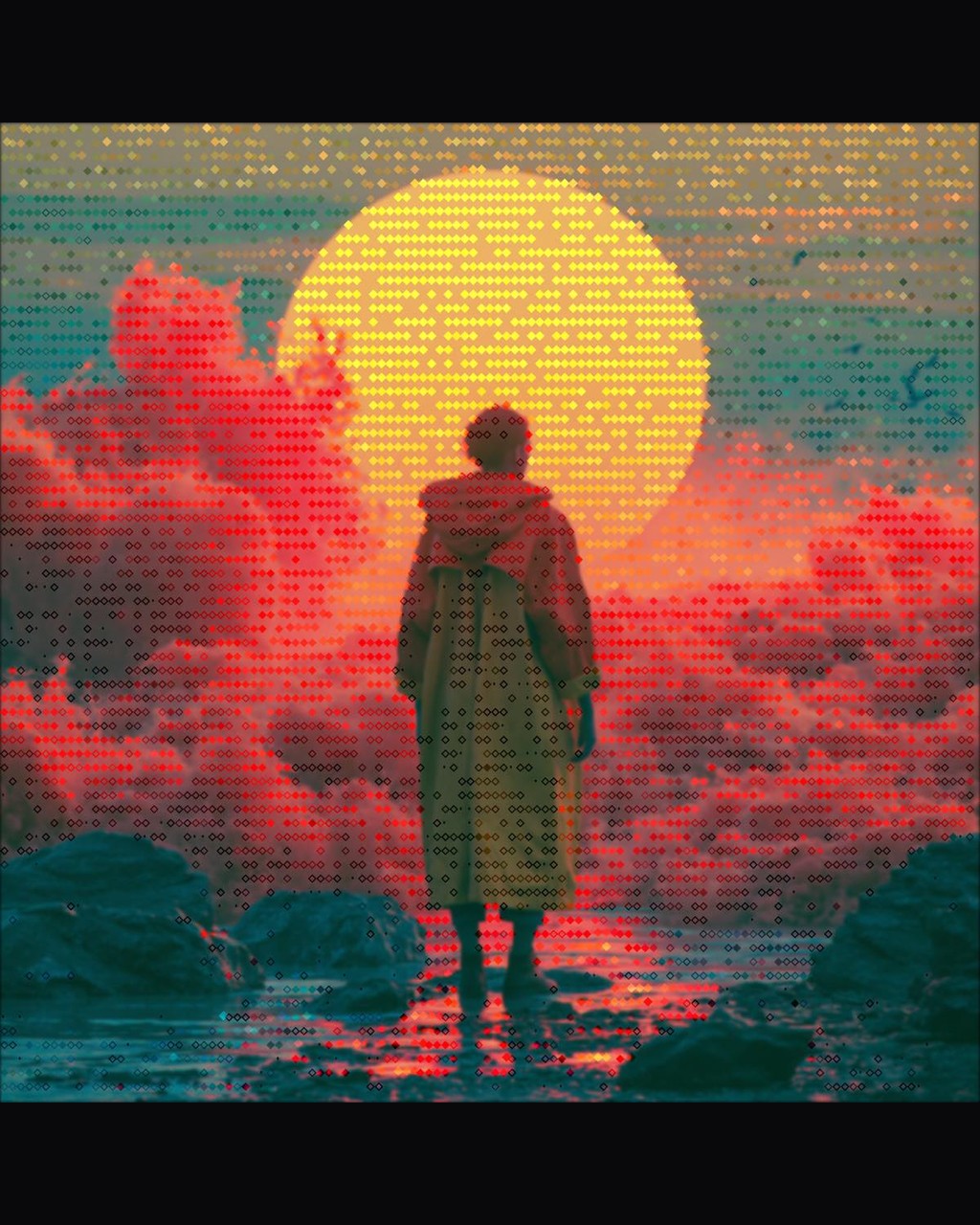
Try an example to understand a tool before choosing a source. Compare effects on the same picture rather than guessing from labels.
Use text for editable characters, PNG for fixed visual presentation and GIF for motion. Match the output to the place it will appear.
It makes artwork from arranged characters rather than painting every pixel of a conventional image. Here, photographs become grids of glyphs and typed words become larger character banners.
Choose image conversion for an existing photograph, text conversion for a title, and drawing for a custom character scene. Use video conversion for an existing clip or animation editing for frames you create.
The image, banner and drawing workspaces produce characters that you can copy or download as text. Choose a destination that preserves spaces and line breaks.
Paste the artwork into a code block, preformatted area or editor using a monospace font. Preserve leading spaces and line breaks rather than reflowing the paragraph.
Character conversion output has an editable text area, so you can replace glyphs or adjust small details before export. Drawing and animation editors also provide direct grid editing.
Yes. Open the image workspace, choose your photo and adjust the columns, contrast and character ramp. Strong light and dark areas usually read well.
A banner starts with words and builds each letter from smaller characters using a FIGlet font. Photo conversion instead samples the brightness of an image.
You can sample a short video or GIF into character frames, or draw a sequence in the animation editor. Preview the timing before exporting.
Image and video conversion runs in your browser, so your selected files stay on your device during processing. Download the finished result before leaving; conversion workspaces do not provide a cloud copy of your artwork.
Export a project JSON file from the drawing or animation editor, then import it into the matching workspace on the other device. Local draft storage is useful for returning in the same browser, while a project file provides a portable backup you can keep with your work.
A small grid has fewer cells to describe the subject, so a clear outline and strong contrast often survive conversion better than a crowded scene. Try a close crop, a shorter banner or a simpler animation first.
Choose TXT for editable characters, HTML for a preformatted presentation, and PNG for a fixed image. SVG keeps text artwork scalable but depends on the viewer’s monospace font; the dots tool exports vector shapes. Video and animation workspaces also offer silent GIFs.
Choose a source, try an example and make an export you can use in your next project.
Start making art