Find a font that fits your message
The ASCII text generator includes twenty FIGlet fonts, from compact styles to larger character lettering. Try a shorter and a taller option on the same words to see what fits your available space.
Try this workflowMake a project name, greeting or heading stand out in real characters. Choose from twenty FIGlet fonts, adjust spacing and alignment, then copy your banner or export an image that preserves its appearance.
     _    ____   ____ ___ ___      _    ____ _____
    / \  / ___| / ___|_ _|_ _|    / \  |  _ \_   _|
   / _ \ \___ \| |    | | | |    / _ \ | |_) || |
  / ___ \ ___) | |___ | | | |   / ___ \|  _ < | |
 /_/   \_\____/ \____|___|___| /_/   \_\_| \_\|_|
Edits are included in exports. New input or conversion settings ask before replacing manual edits.
Processed on your device. Plain text uses a monospace font; PNG keeps the chosen colors. SVG keeps the current text and colors in a scalable image.
Real outputs made with this tool. Load a sample, then make it yours.
Basic tools and their normal exports stay free. Subscription effects use no credits; AI rendering uses 1, 2 or 3 credits per attempt.
Basic, Pro and Max include all six effects. No credits are charged. Your free tools and original exports stay available.
Applies to a snapshot scaled to at most 1024 pixels per side and 1 MiB. Video and animation use the current frame. Text remains unchanged.
Finish your current artwork with AI. All accounts can use credits; a subscription is optional. For animation and video, only the current frame is used.
This action uploads a bounded image of your current result to our AI service. Your original text, frames and source remain unchanged. A new render uses the displayed credit cost. Check your credit history for any adjustments after a failed generation.
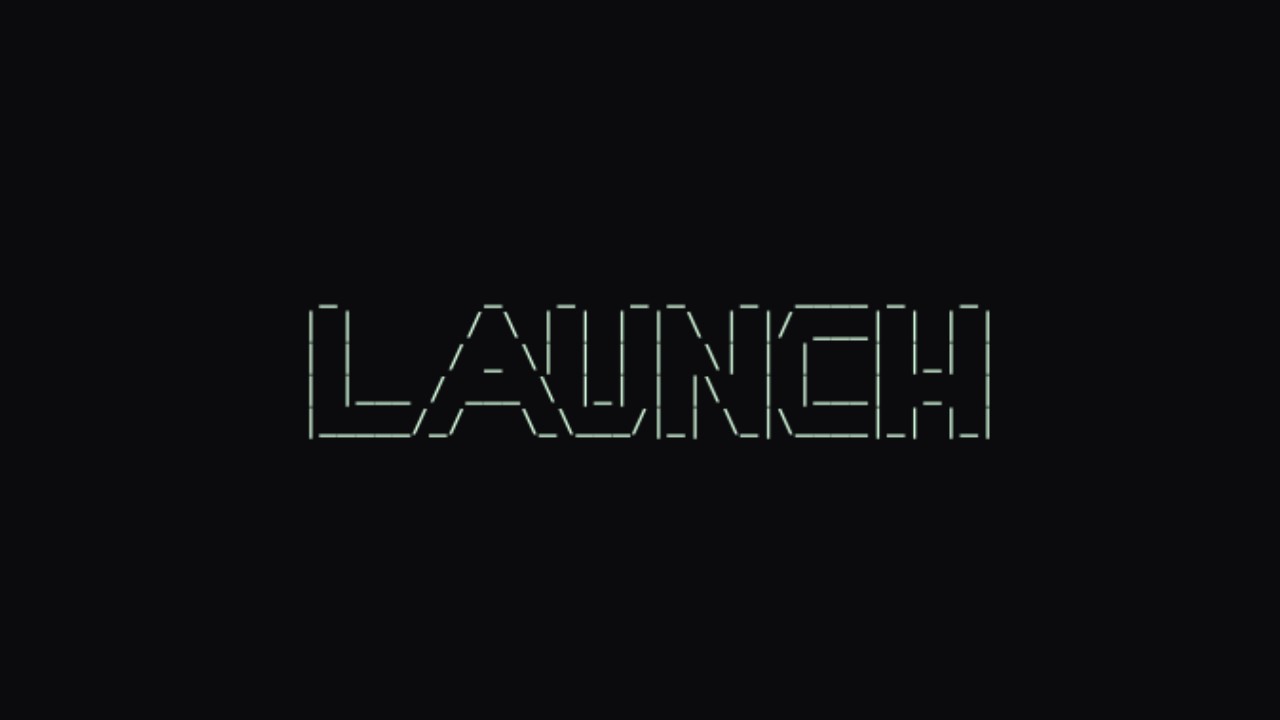
A short word becomes a larger shape made from smaller characters. Compare the plain input with its banner, then use the font and alignment controls to choose lettering that suits your README, terminal or graphic.
Original input
LAUNCH
Result example
##          ###    ##     ## ##    ##  ######  ##     ##
##         ## ##   ##     ## ###   ## ##    ## ##     ##
##        ##   ##  ##     ## ####  ## ##       ##     ##
##       ##     ## ##     ## ## ## ## ##       #########
##       ######### ##     ## ##  #### ##       ##     ##
##       ##     ## ##     ## ##   ### ##    ## ##     ##
######## ##     ##  #######  ##    ##  ######  ##     ##
Type a short title, name or greeting. Use separate lines for separate ideas, and begin with a compact message if the final destination has limited width.
Pick a FIGlet font, adjust the horizontal layout and choose left, center or right alignment. Compare the preview before deciding whether the lettering feels crowded.
Copy the banner or download TXT for a preformatted destination. Choose HTML or PNG when you want to carry its selected colors and presentation into another context.
The ASCII text generator includes twenty FIGlet fonts, from compact styles to larger character lettering. Try a shorter and a taller option on the same words to see what fits your available space.
Try this workflow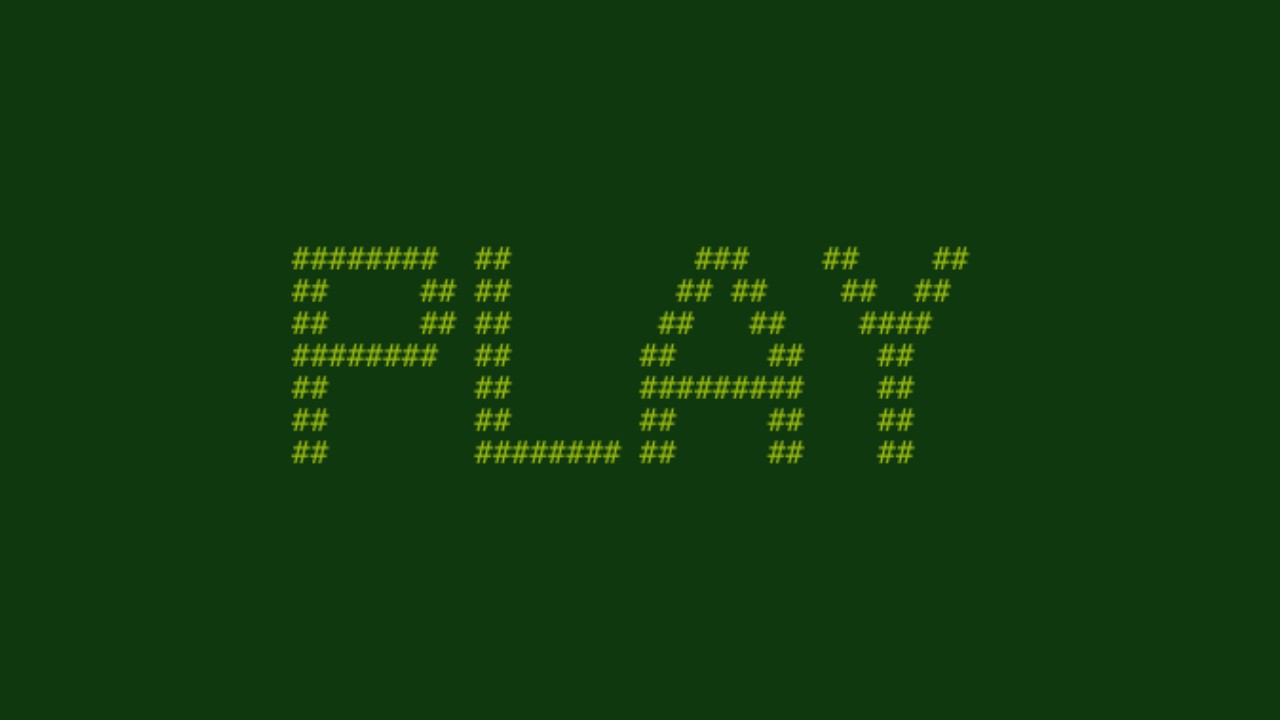
An ASCII art logo starts with a name rather than a photograph. Character lettering can introduce a small command line project or personal README, with the original words still readable inside a larger typographic shape.
Try this workflow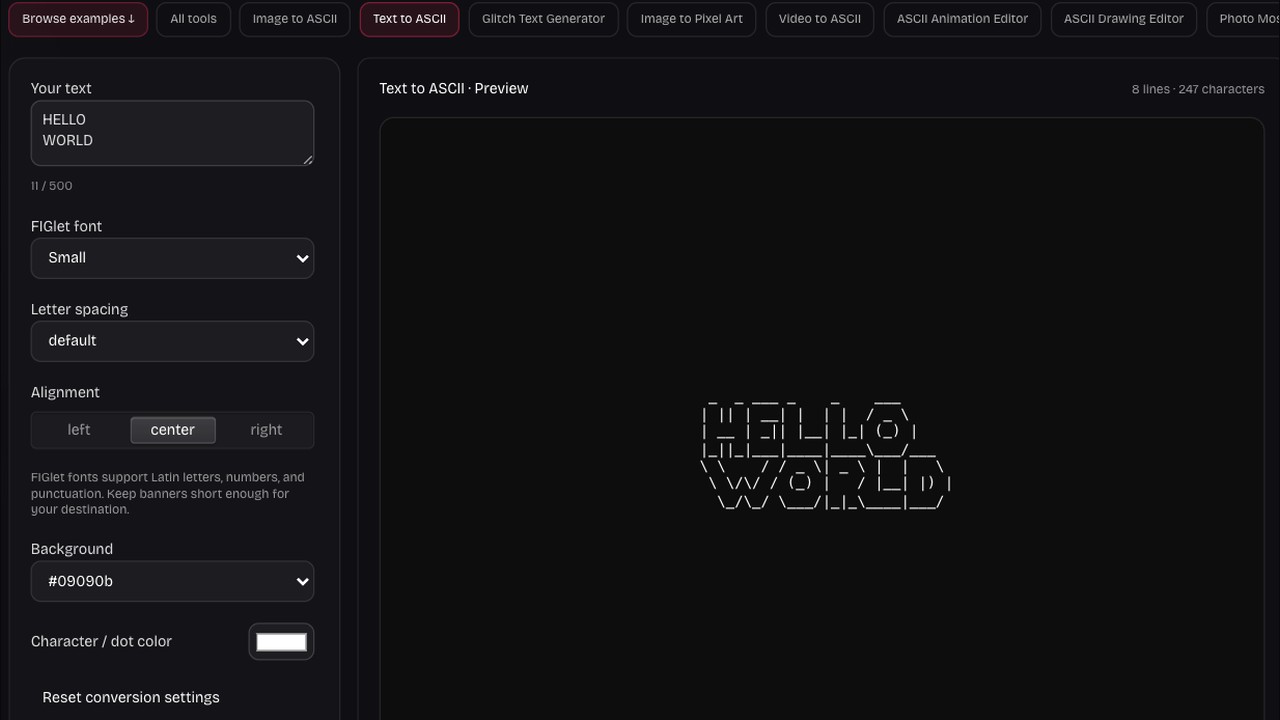
A title and subtitle can share a banner without becoming one crowded line. Use multiline input and alignment to organize the message, then check its full width before copying it to a narrower destination.
Try this workflowA text art generator works best when its lettering serves the message. Match font size and spacing to your destination, then decide whether editable characters or a fixed image will be easier to use.
Use a short name or heading so the letter shapes remain clear. Preview at the size where readers will encounter the banner.
Compare compact, slanted and larger styles on your own words. Choose the shape that supports the message rather than the widest result.
Adjust layout and alignment while looking at the complete banner. Keep enough separation for the words without wasting a narrow text area.
Download editable text for future changes or an image for predictable display. Keep the output that matches your publishing workflow.
It renders the letters you type as larger shapes built from smaller characters. The FIGlet font determines the construction of those shapes.
There are twenty FIGlet options, including Standard, Small, Slant, Banner, Big and other distinct styles shown in the font selector. Compare them using your own message rather than judging the name alone.
Start with a short message and try a compact font. Copy the finished characters into a fenced code block so spaces and line breaks remain intact.
The ASCII text art generator produces real characters. Open Edit current text to replace a glyph or add decoration before copying. Changing fonts or layout asks before replacing those edits, so you can keep the version you want.
Character lettering can serve as a text based logo for a terminal project, README or informal graphic. Type the name, choose a font and inspect the result at its intended size.
A proportional font gives characters different widths, while normal paragraphs can collapse spaces or wrap lines. Use a monospace font and a preformatted area to preserve the banner grid.
Each line of your input contributes lettering to the output, so a short title and subtitle can be arranged together. Alignment positions the generated lines within the overall width.
You can set the character color and background for the rendered preview and image output. Plain text stores characters rather than their visual colors, so its appearance depends on the destination.
This workspace makes visual lettering from characters; it is intended for banners and text artwork. Numeric character codes are a different task.
Start with Latin letters, numbers and common punctuation. Character coverage varies by FIGlet font, so preview accented letters and other scripts before relying on them. If a character is missing, try another font or simpler spelling; these fonts do not cover every writing system.
TXT keeps ASCII text art editable in a monospace destination. PNG fixes its appearance for slides or social graphics. SVG stays scalable and retains text, but uses the viewer’s available monospace font rather than outlined letter shapes. Choose HTML for a preformatted page with your selected colors.
Use the same FIGlet font, layout and color settings for each heading, then generate and export them individually. Keep headings similar in length when consistent width matters.

Type a heading, compare a few fonts and export lettering that belongs in your next project.
Make a banner