Image to Pixel Art

Turn a photo or illustration into a crisp pixel grid. Set the detail, compare color palettes and try dithering, then download a PNG with visible square pixels for your next graphic or visual experiment.

Tool view
Image to Pixel Art · Preview
Made with this toolExample preview

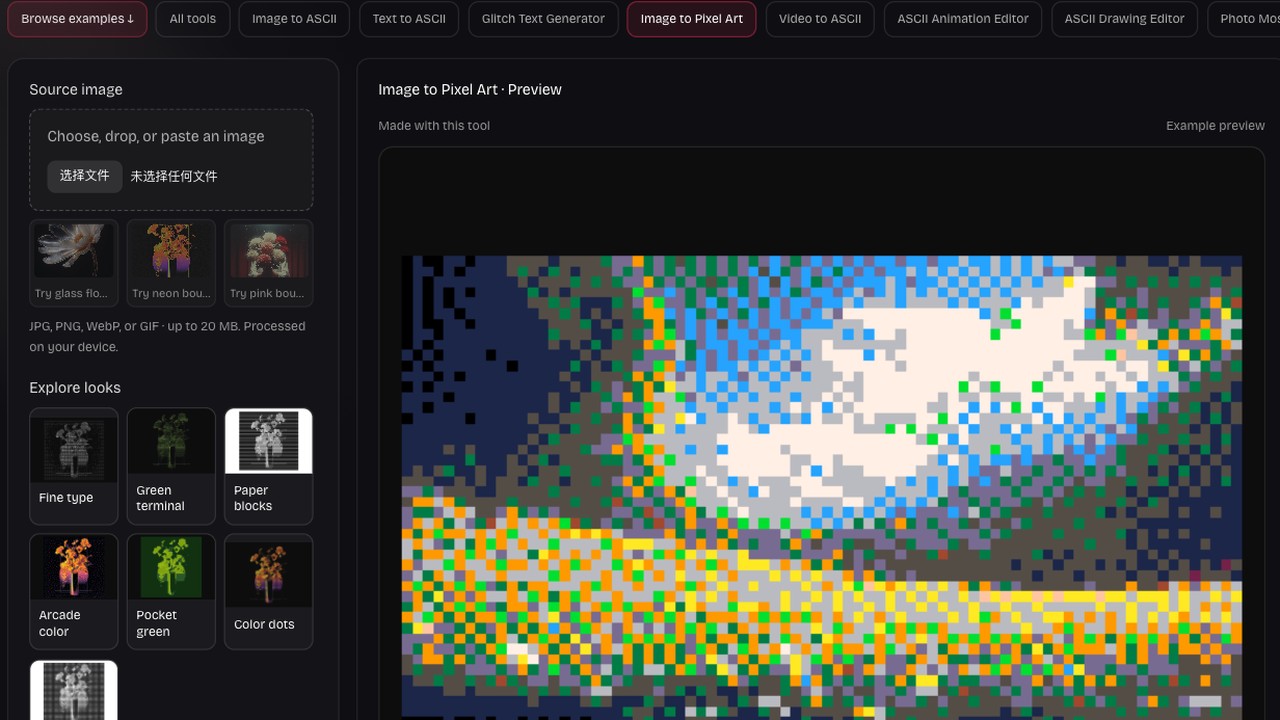
Alpine palette

PICO-8 colors and dithering bring a meadow into an arcade world. Load it to adjust the settings, or upload your own.

Processed on your device. Plain text uses a monospace font; PNG keeps the chosen colors.

Start with an example

Real outputs made with this tool. Load a sample, then make it yours.

Click to load · fully editable
Optional paid enhancements

Basic tools and their normal exports stay free. Subscription effects use no credits; AI rendering uses 1, 2 or 3 credits per attempt.

Premium effects

Basic, Pro and Max include all six effects. No credits are charged. Your free tools and original exports stay available.

Applies to a snapshot scaled to at most 1024 pixels per side and 1 MiB. Video and animation use the current frame. Text remains unchanged.

Create an artwork above to use premium effects.

AI artwork rendering · 1–3 credits

Finish your current artwork with AI. All accounts can use credits; a subscription is optional. For animation and video, only the current frame is used.

This action uploads a bounded image of your current result to our AI service. Your original text, frames and source remain unchanged. A new render uses the displayed credit cost. Check your credit history for any adjustments after a failed generation.

Create or load an artwork first.

AI render1 credit

Find the point where fewer pixels say enough

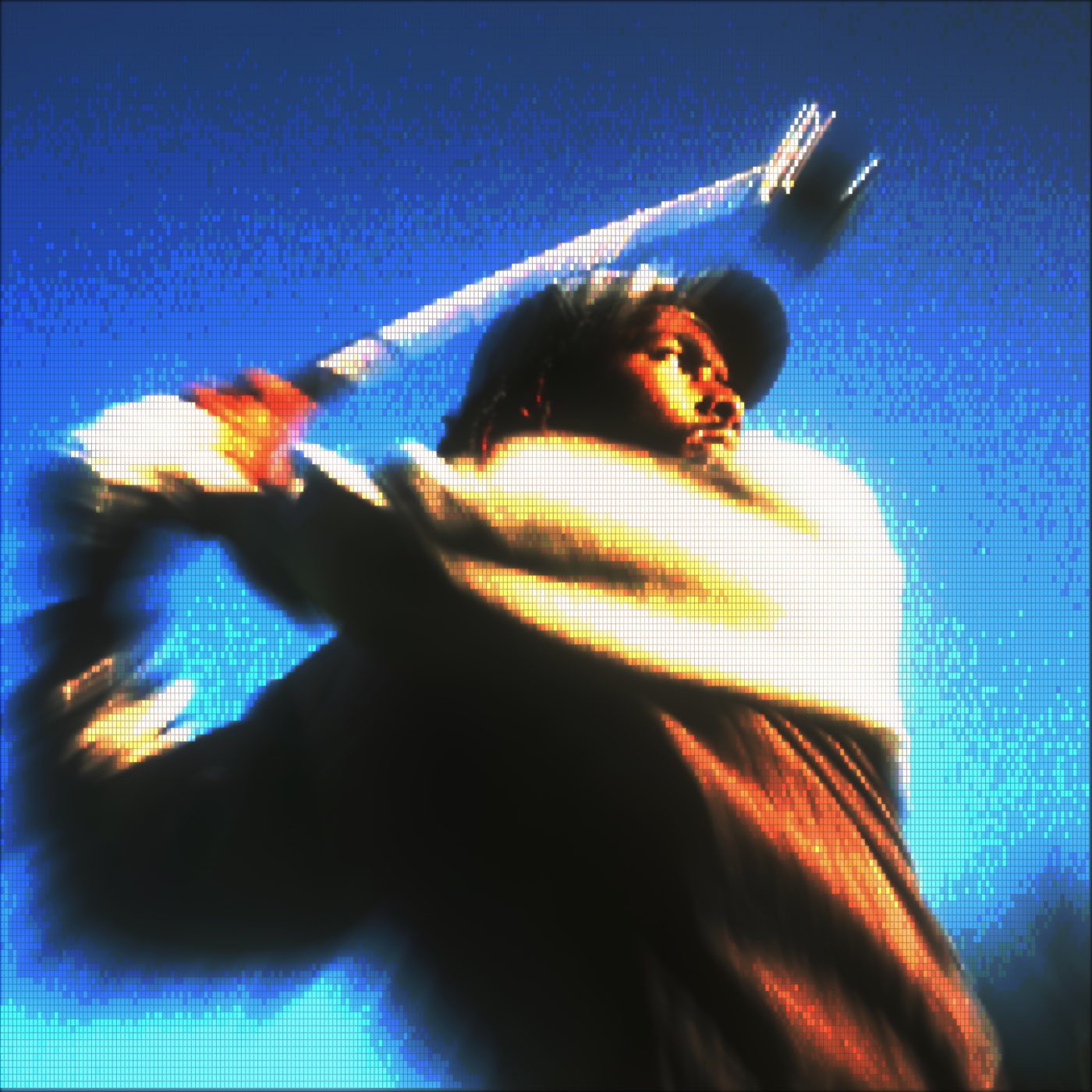
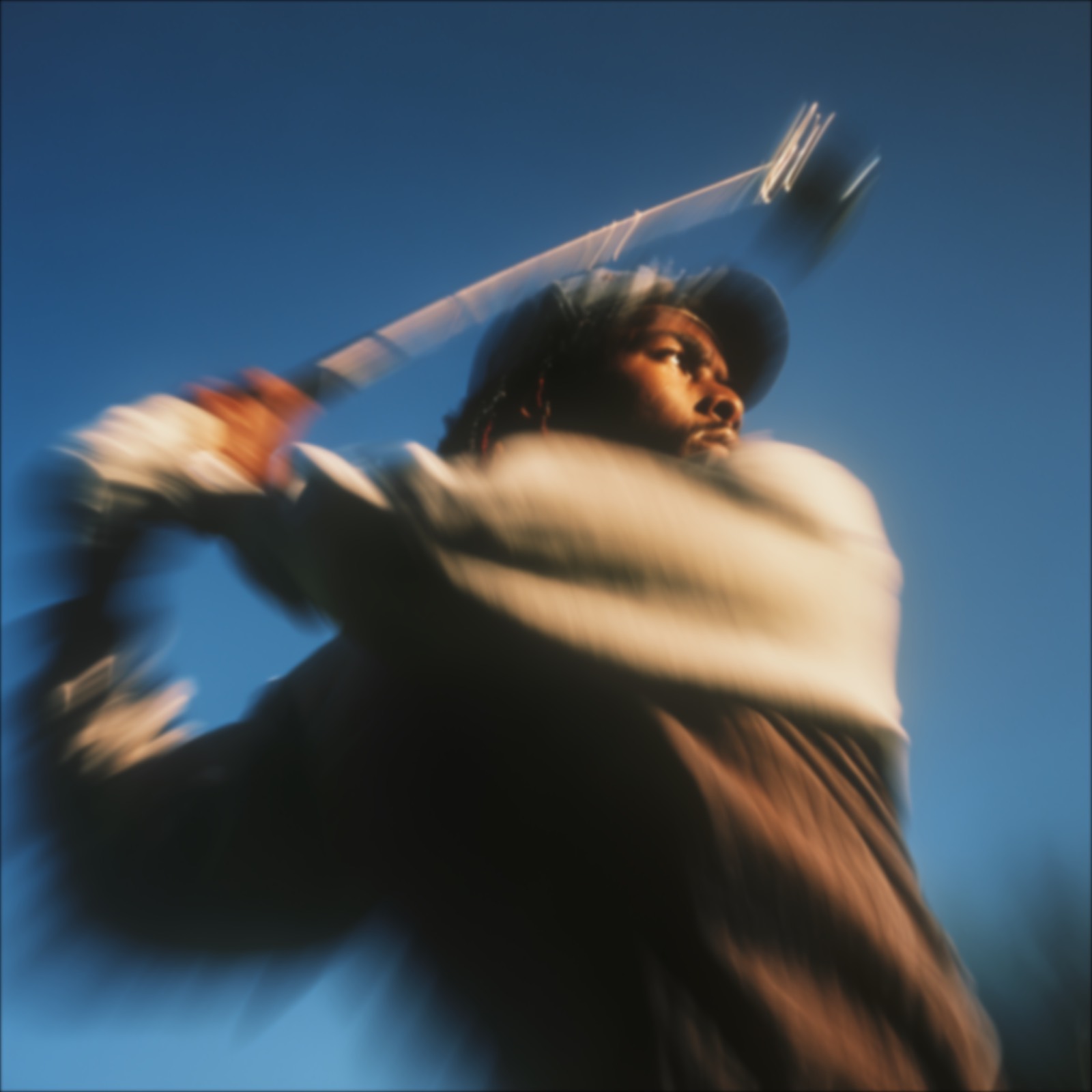
A smaller grid simplifies the picture into larger shapes; a finer grid keeps more texture. Compare the source and pixel result to choose a size that preserves your subject without losing the blocky treatment you wanted.

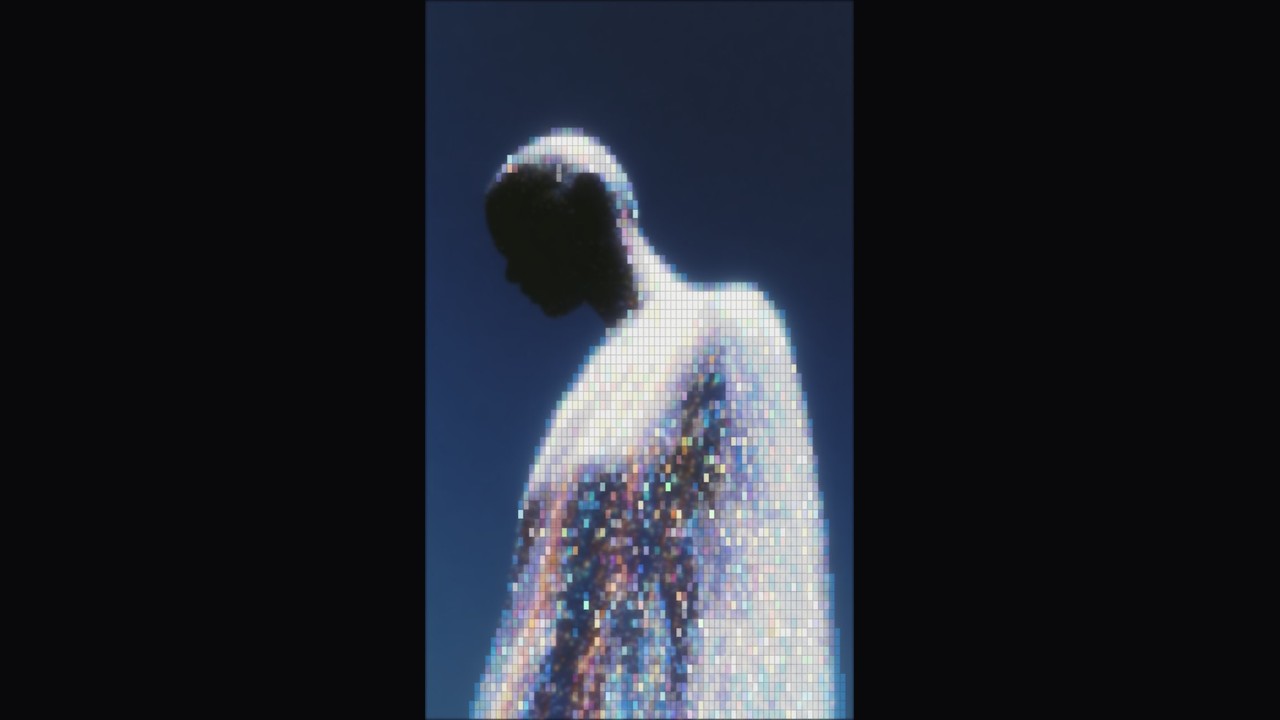
The same portrait reduced to a pixel grid
Original action portrait against a blue sky
Original inputResult example

Create a pixel image in three steps

Make pixel art

Choose a picture with a clear subject

Upload a JPG, PNG, WebP or GIF image, or load an example. Start with a subject whose outline you can recognize before reducing the available detail.

Set the grid and color treatment

Choose the number of columns, select a palette and compare dithering on or off. Adjust brightness and contrast if important regions blend together.

Inspect and download the PNG

Use the source comparison and zoom to check the result. Download the PNG when the subject reads well at both the full image size and a closer view.

Decide what survives the smaller grid

Figure beneath a pixel sunset

Choose a deliberate level of detail

Picture to pixel art conversion begins with the grid size. A small number of columns creates large, obvious blocks, while more columns preserve features such as eyes, lettering and the edge of an object.

Try this workflow
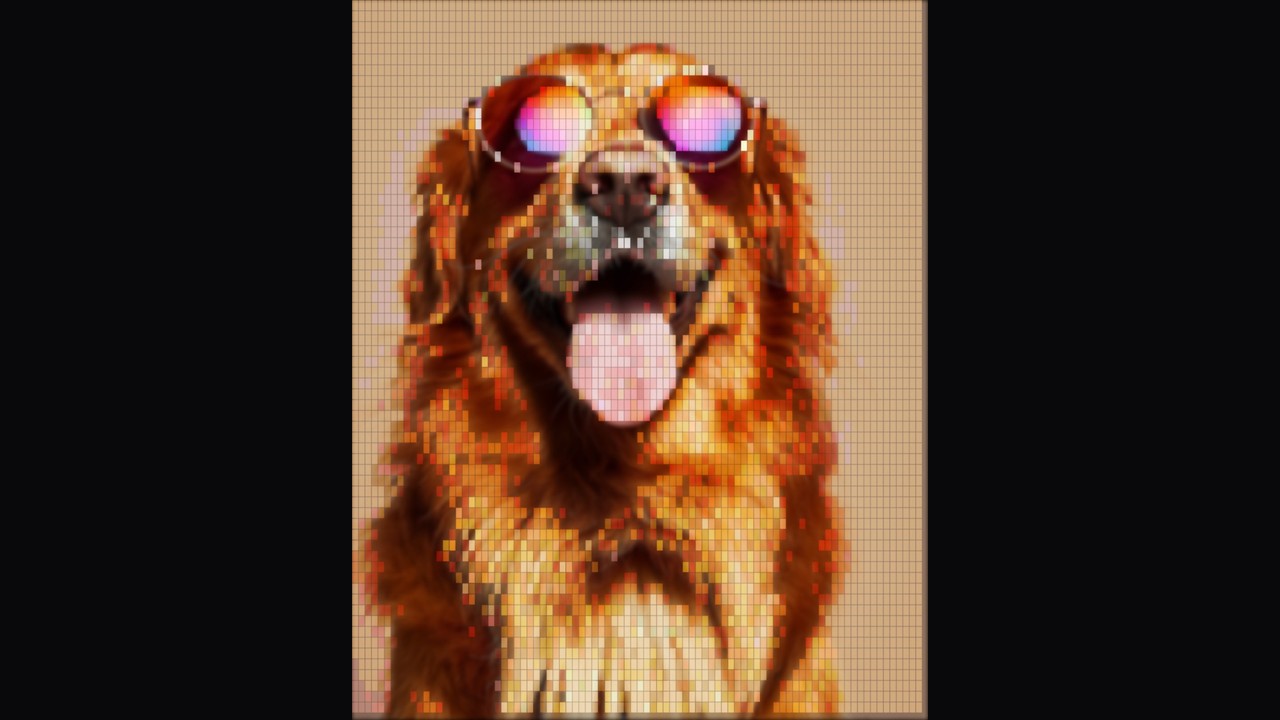
Goggle-wearing dog rendered as pixels

Compare five color palette choices

Keep sampled source colors or choose Game Boy, PICO-8, Grayscale or Black and white. A limited palette gives separate pictures a related visual language, while original colors retain more of a photograph’s familiar mood.

Try this workflow
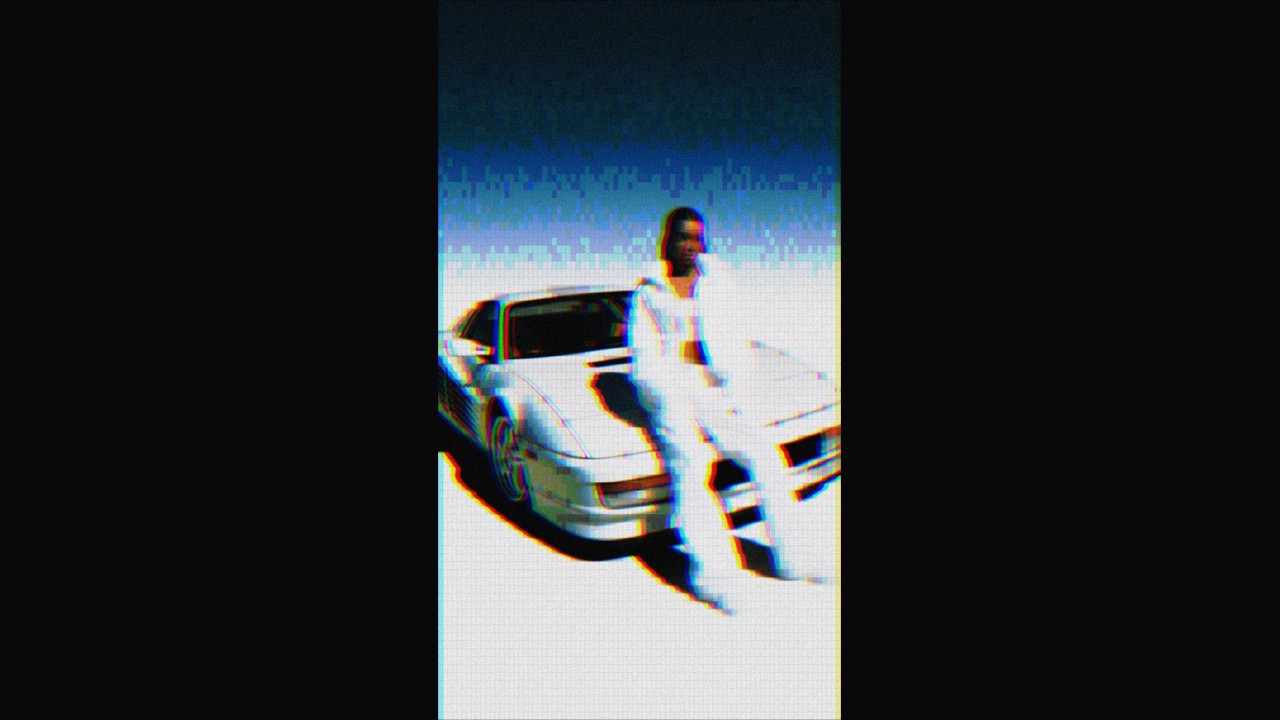
Pixel portrait beside a retro car

Use dithering for a different texture

Floyd–Steinberg dithering distributes color differences across neighboring pixels when using a limited palette. Try it for gradients and softer shadows, then compare it with the cleaner blocks produced when the option is turned off.

Try this workflow
Pale portrait with fine pixel texture

Adjust tones before judging the palette

Brightness and contrast influence which palette colors represent the picture. A modest adjustment can separate a dark subject from its background or retain a light face, especially when only a few colors describe the scene.

Try this workflow
Implemented pixel workspace controls and preview

Judge shapes against the original

The image to pixel workflow includes a source comparison so you can see what the smaller grid removes. Check the main silhouette first, then zoom closer to examine edges and color patterns in the result.

Try this workflow
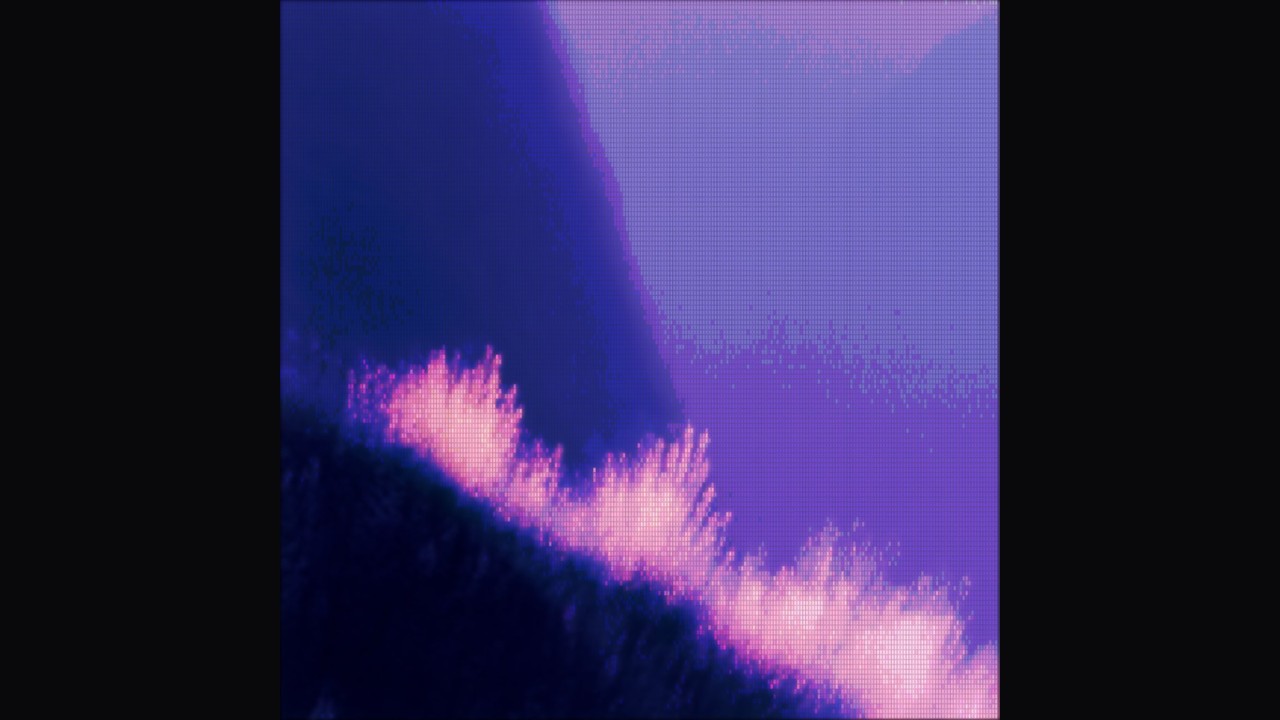
Purple pixel mountain

Export visible square pixels

The output is enlarged with smoothing disabled, keeping block edges visible in the PNG. This gives you a rendered image for sharing or composition, while the chosen grid remains the source of its pixel texture.

Try this workflow

Build a pixel look around your picture

To create pixel art from image material, you need choices about simplification rather than a single fixed filter. Grid, palette and tone controls help you decide which shapes and colors define the final piece.

A recognizable subject

Preserve the silhouette before adding finer texture. Choose a grid that communicates the picture at the size where people will see it.

Colors that work together

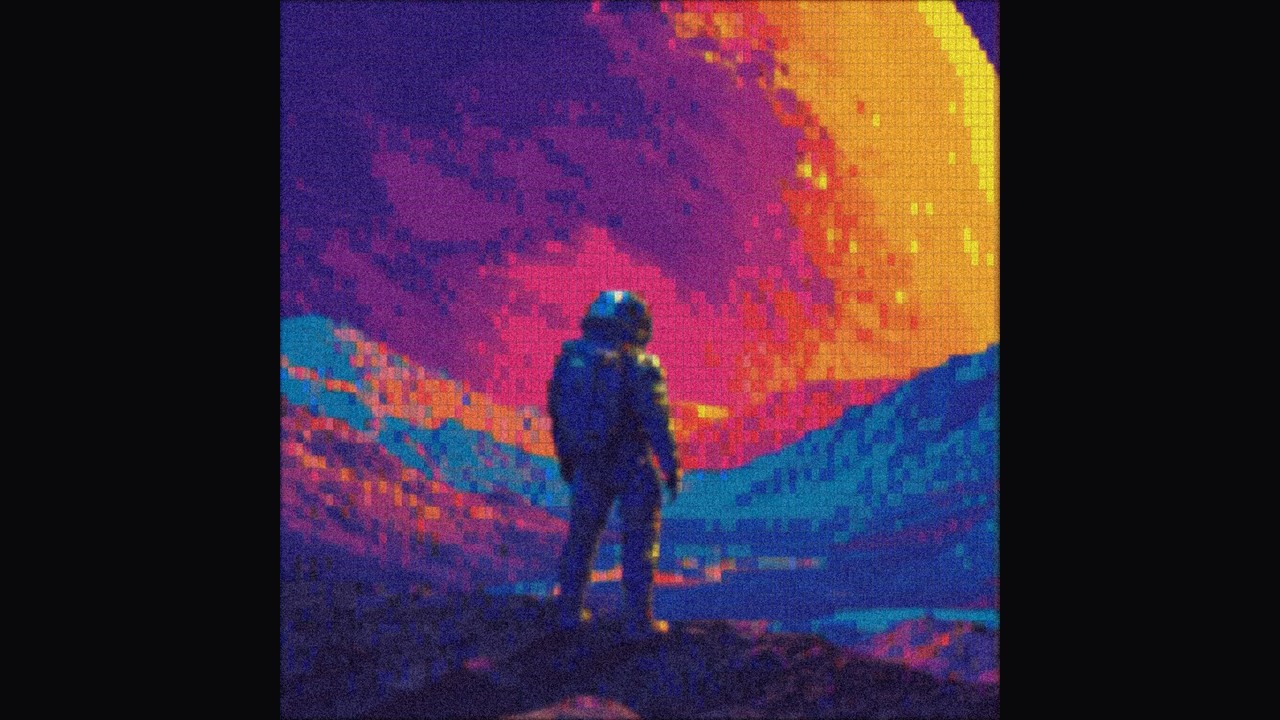
Use a named palette when you want a consistent mood across images. Compare source colors when the original color identity matters more.

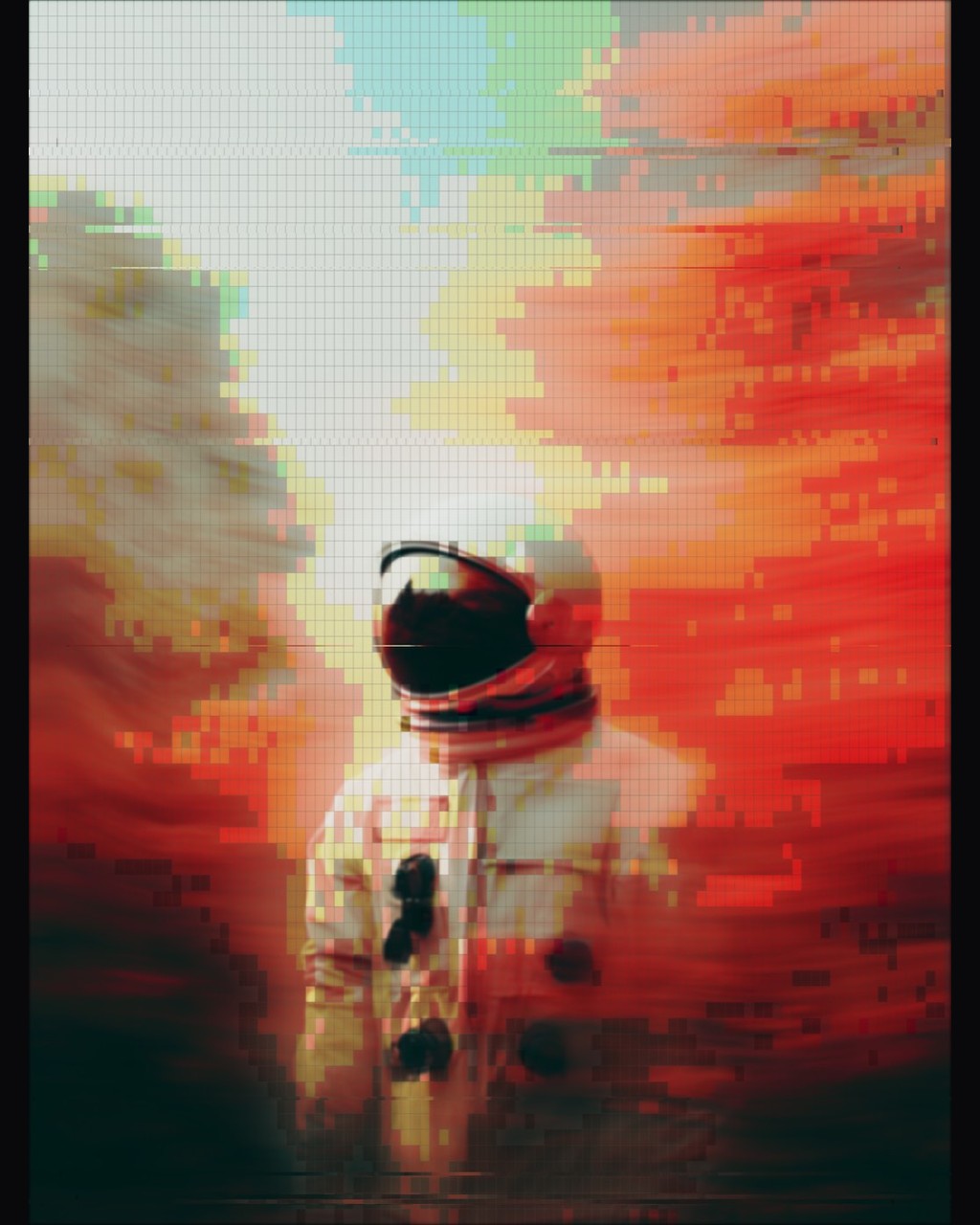
Astronaut in a colorful pixel landscape

Texture you can compare

Switch dithering on and off for the same picture. Keep the choice that supports the subject instead of treating extra texture as automatic improvement.

A PNG ready to place

Download a rendered image with crisp block edges. Use it in a layout that respects the visible grid and chosen color treatment.

Questions before you start

ASCII Art Generator

Find your picture’s pixel shape

Choose a source, compare grids and palettes, then export the blocky interpretation you want to use.

Make pixel art