Image to ASCII

Transform a photograph into real character art you can edit and copy. Tune the grid, brightness and character ramp, compare the source with the result, then choose text or image export for your destination.

Tool view
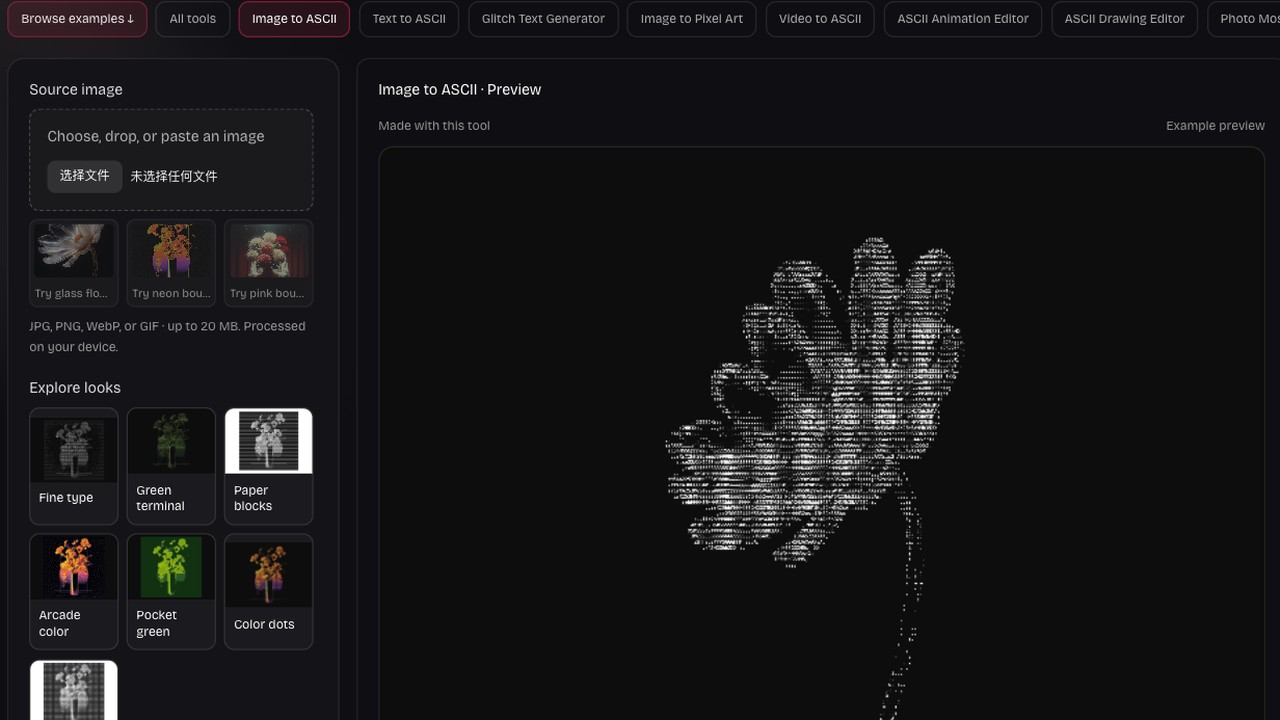
Image to ASCII · Preview
Made with this toolExample preview

Glass flower

Fine characters reveal the light passing through each petal. Load it to adjust the settings, or upload your own.

Processed on your device. Plain text uses a monospace font; PNG keeps the chosen colors. SVG keeps the current text and colors in a scalable image.

Start with an example

Real outputs made with this tool. Load a sample, then make it yours.

Click to load · fully editable
Optional paid enhancements

Basic tools and their normal exports stay free. Subscription effects use no credits; AI rendering uses 1, 2 or 3 credits per attempt.

Premium effects

Basic, Pro and Max include all six effects. No credits are charged. Your free tools and original exports stay available.

Applies to a snapshot scaled to at most 1024 pixels per side and 1 MiB. Video and animation use the current frame. Text remains unchanged.

Create an artwork above to use premium effects.

AI artwork rendering · 1–3 credits

Finish your current artwork with AI. All accounts can use credits; a subscription is optional. For animation and video, only the current frame is used.

This action uploads a bounded image of your current result to our AI service. Your original text, frames and source remain unchanged. A new render uses the displayed credit cost. Check your credit history for any adjustments after a failed generation.

Create or load an artwork first.

AI render1 credit

From image detail to readable characters

The source picture supplies light and shadow; the character grid decides how much survives. Compare both views while adjusting width and contrast, so important contours stay recognizable before you commit to an export.

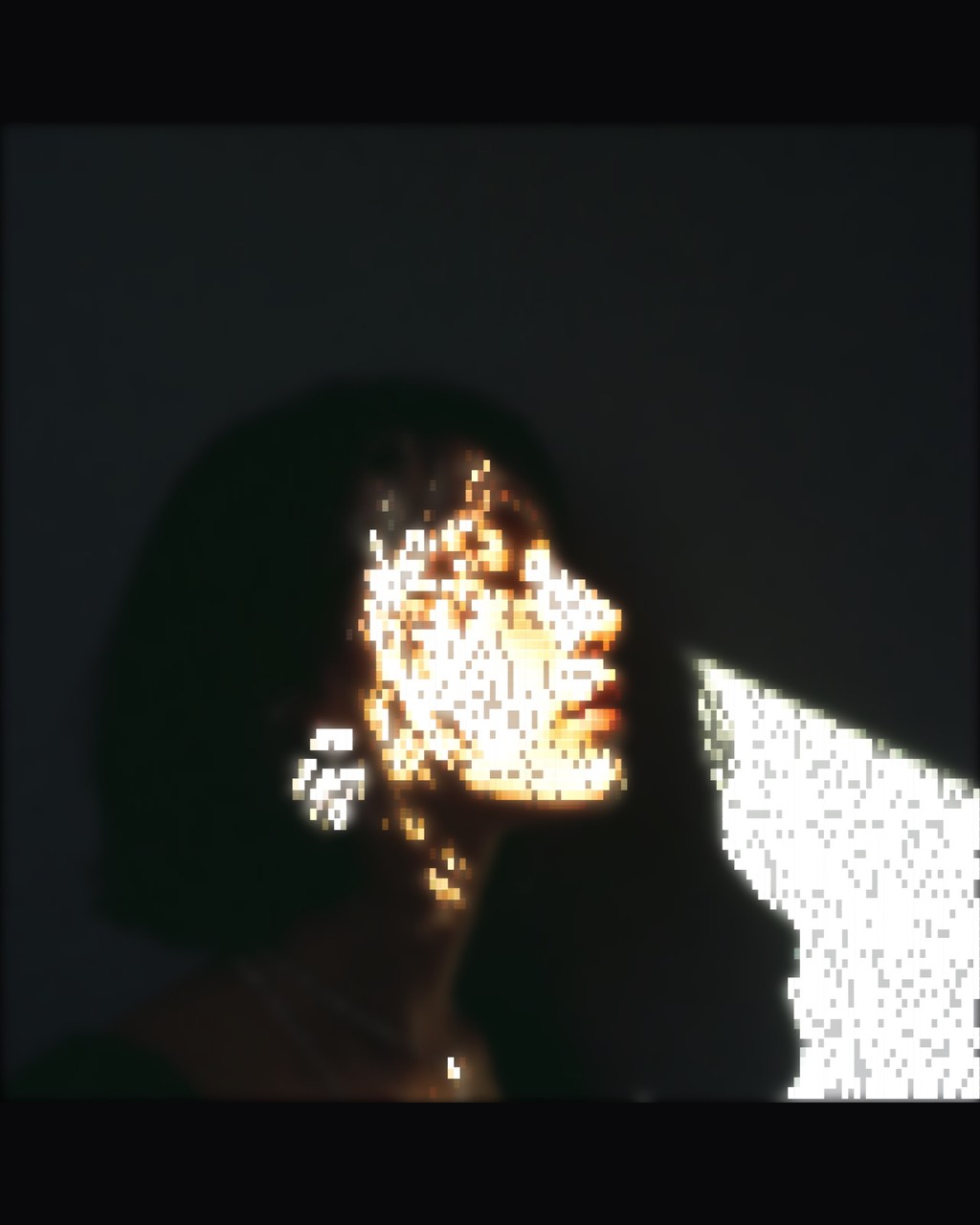
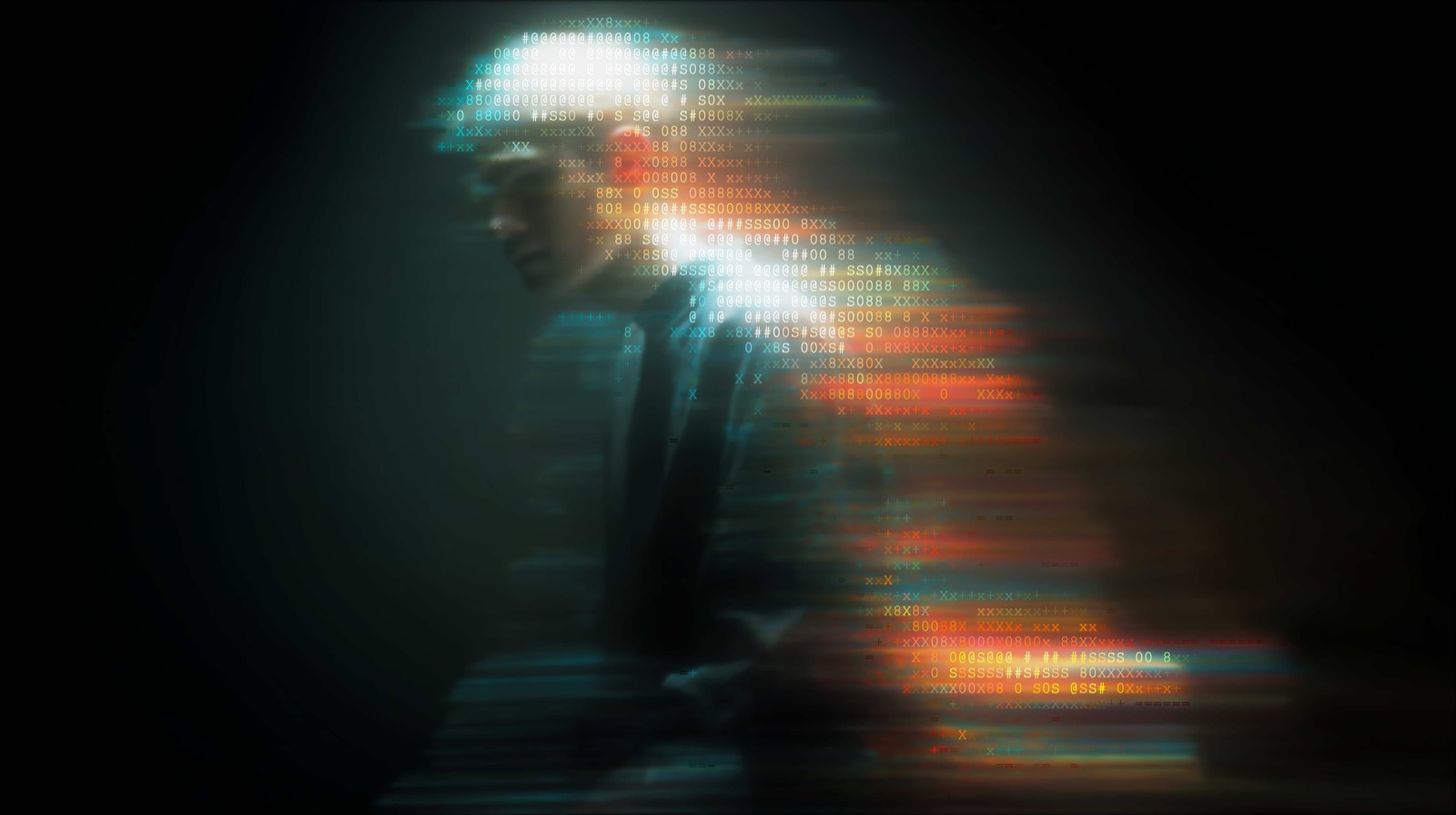
The same portrait rendered with ASCII characters
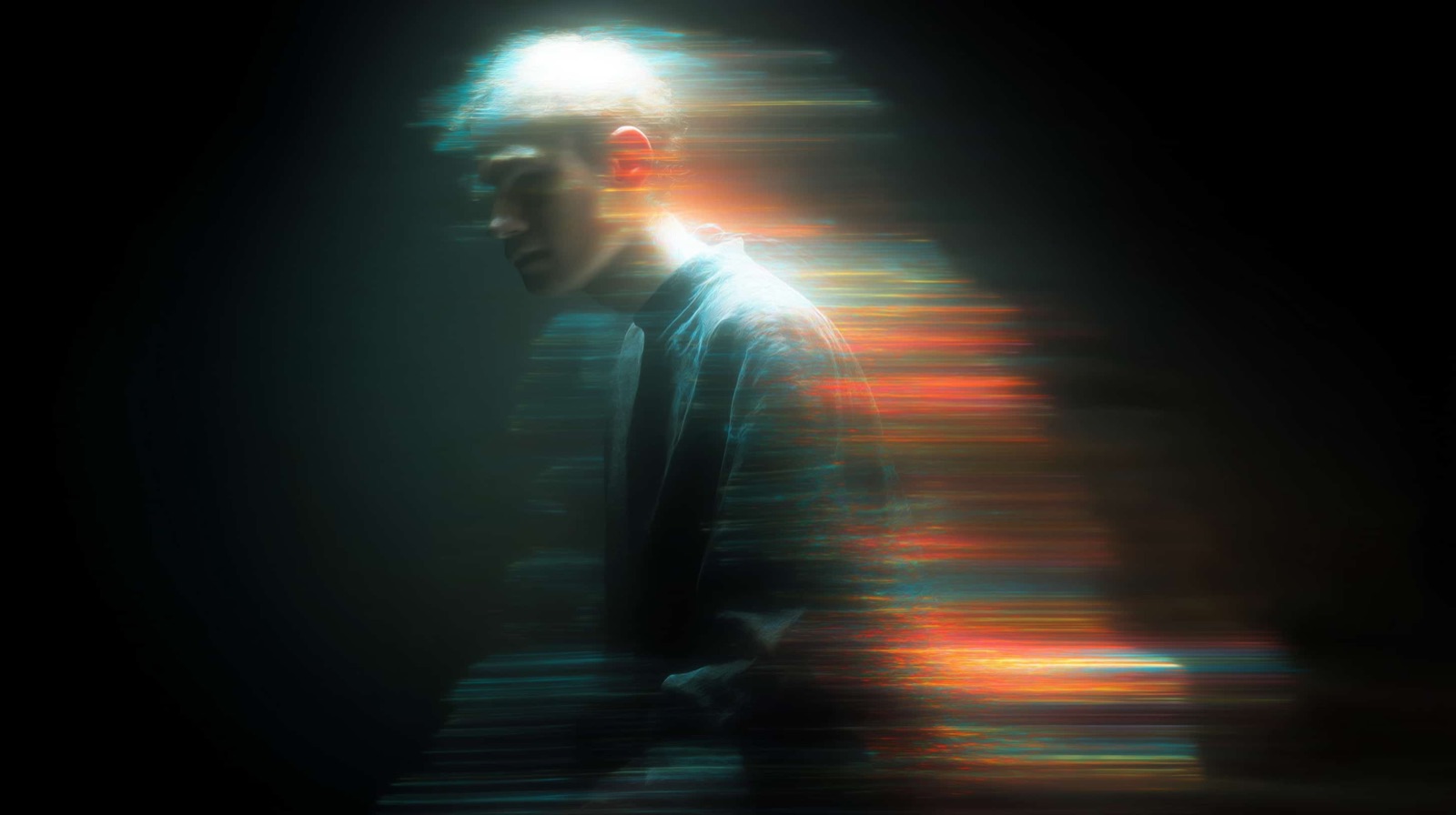
Original motion-blurred portrait with colored lights
Original inputResult example

Convert an image in three steps

Convert your image

Choose a clear source

Upload a JPG, PNG, WebP or GIF image, or load an example. A clear subject and distinct light and dark areas make a useful starting point.

Tune the character interpretation

Adjust columns, contrast, brightness and row proportions. Choose a character ramp or enter your own, then compare the preview with the source at a comfortable zoom.

Edit and export the result

Replace characters where a detail needs attention. Copy the text, download TXT or HTML for character layouts, or choose PNG or SVG for visual use.

Control how the picture becomes text

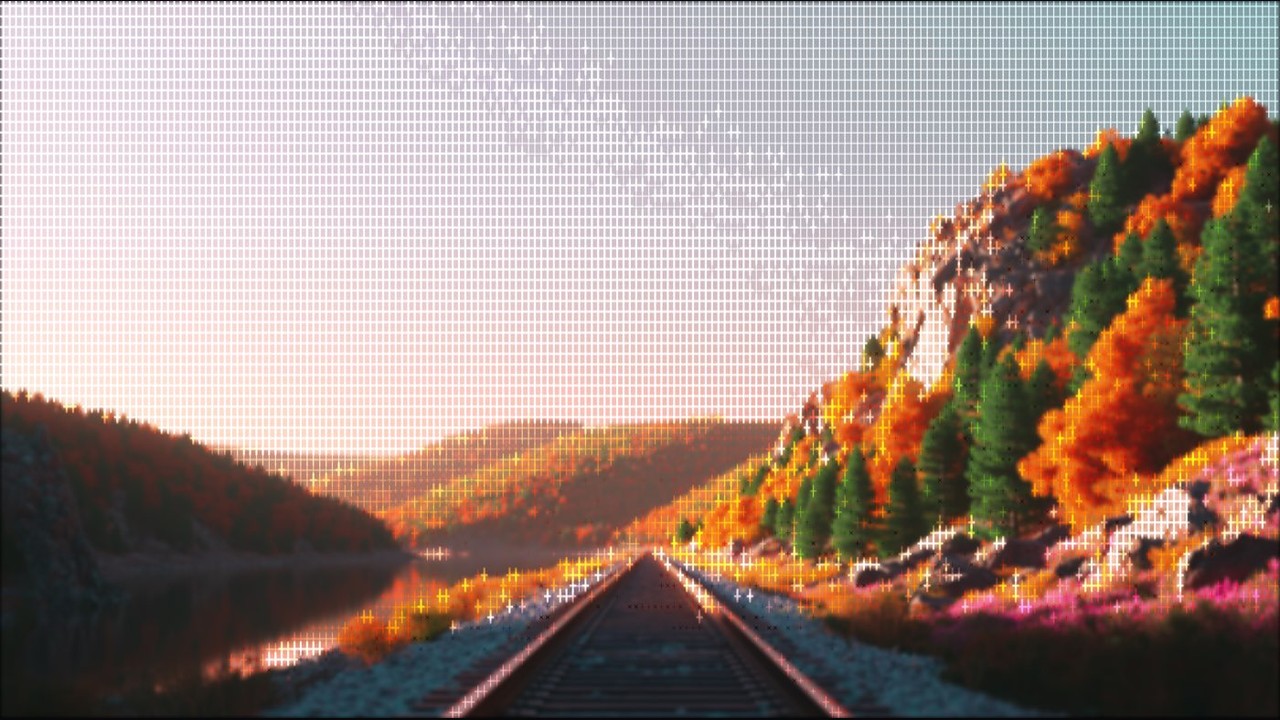
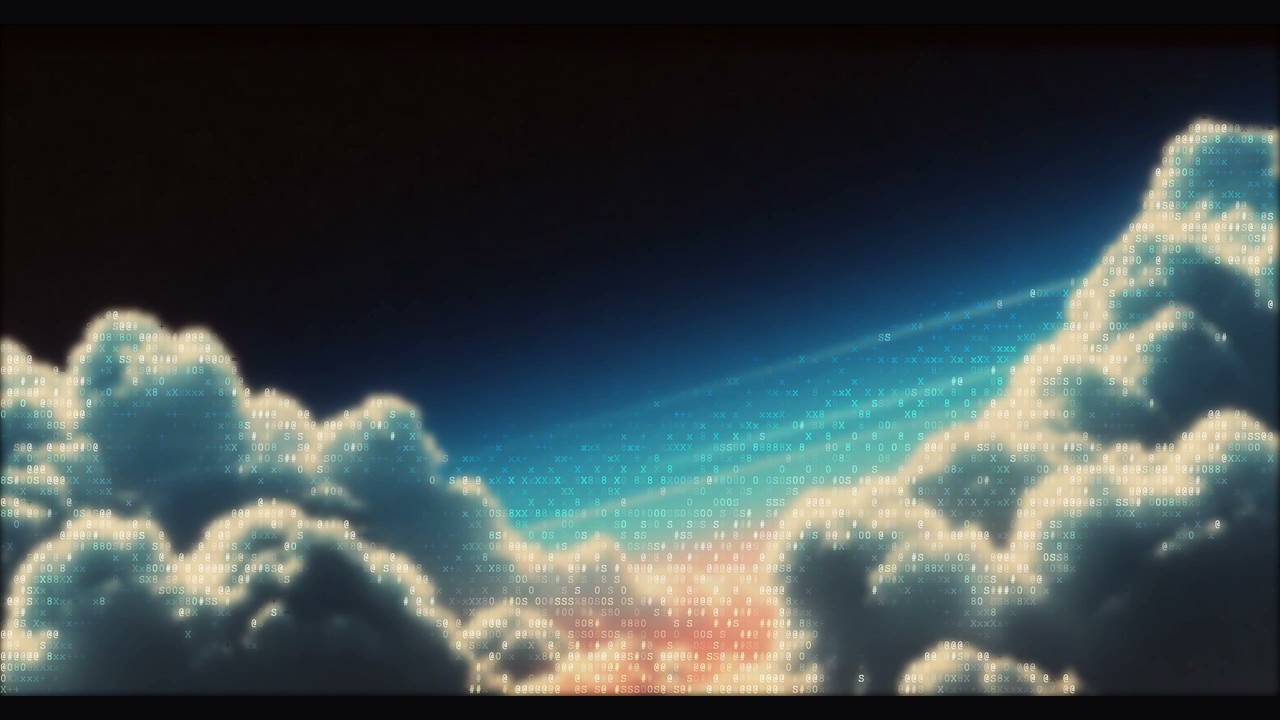
Cloud landscape built from printable characters

Choose detail for the destination

An image to ASCII converter samples the picture into a character grid. Fewer columns create a compact silhouette; more columns preserve smaller features but need a wider text destination to remain readable.

Try this workflow
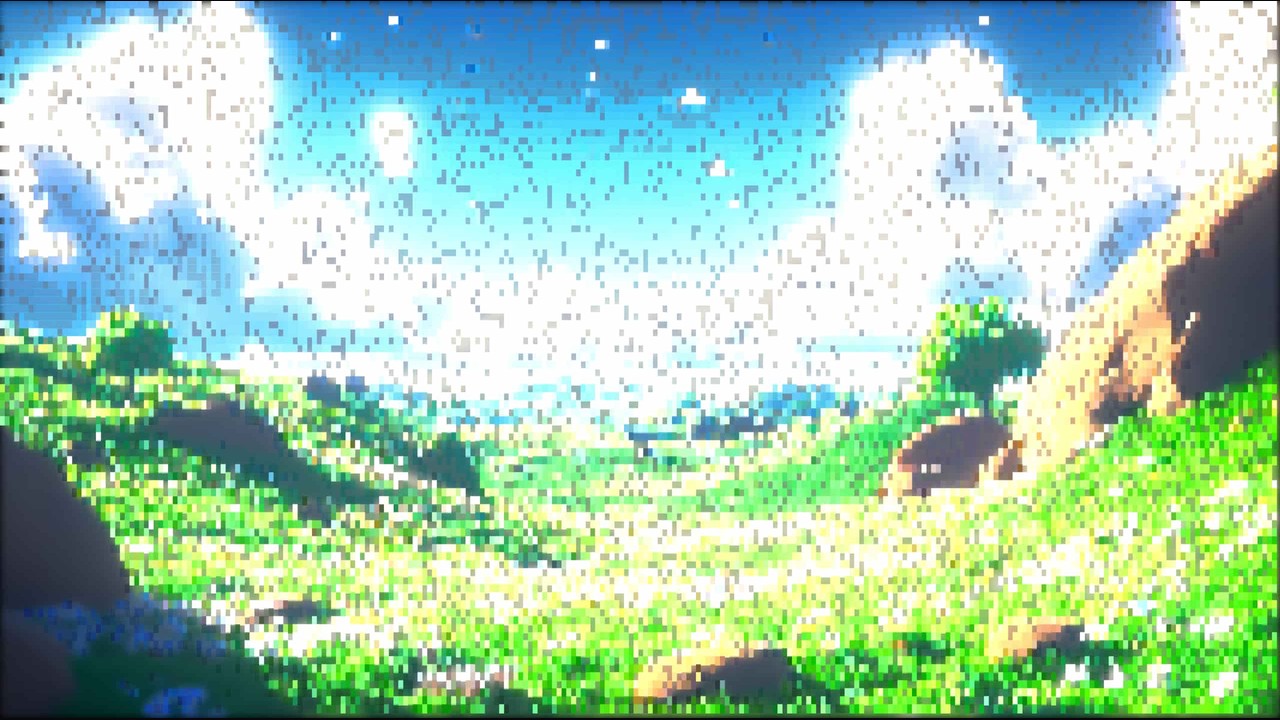
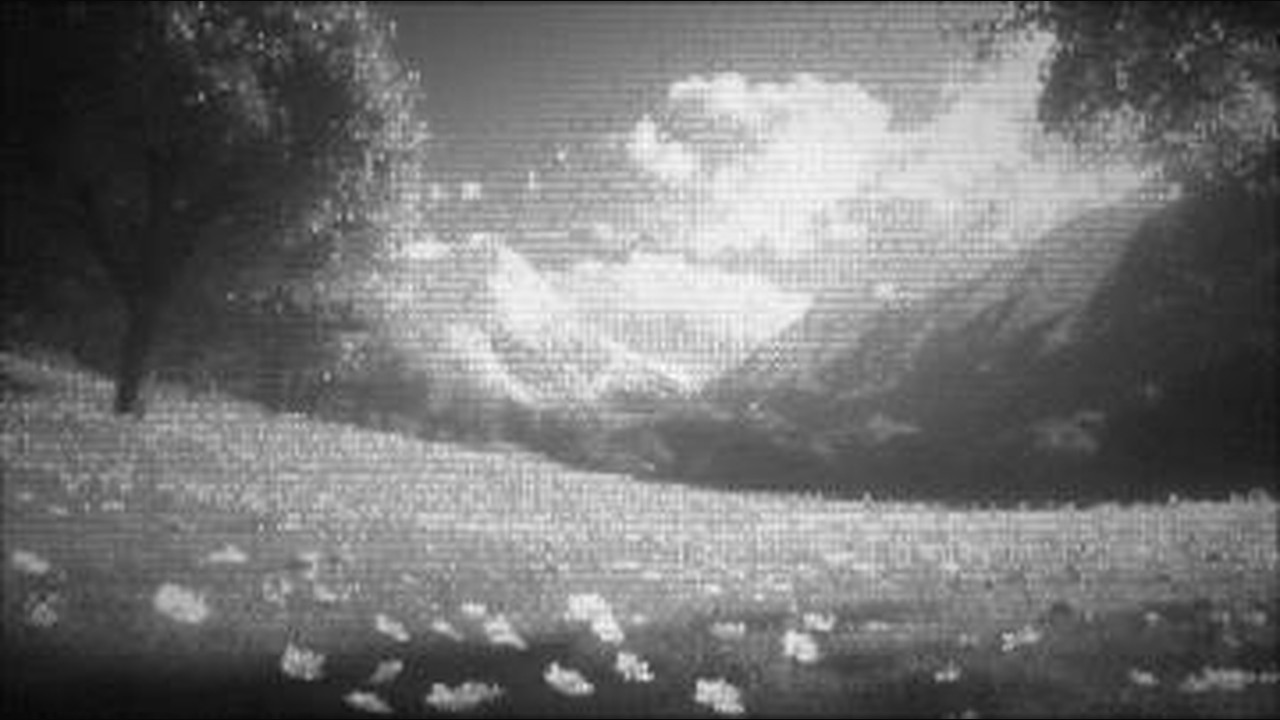
Bright grassy landscape in block characters

Build texture with a character ramp

The ASCII image generator maps brightness to your chosen glyphs. Try a detailed ramp for subtle shading, a minimal ramp for bold shapes, or custom characters when a particular texture supports your subject.

Try this workflow
Monochrome mountain texture

Balance light and dark regions

Brightness and contrast change which parts of the picture become dense or sparse. Adjust them while watching the face, outline or lettering you care about, rather than treating maximum detail as the goal.

Try this workflow
Forest road rendered with cross-shaped characters

Keep the subject in proportion

Character cells are taller than they are wide, so a direct square grid can stretch a picture. Row proportion controls help the ASCII image converter preserve the shape of a face, object or landscape.

Try this workflow
Implemented image workspace controls and preview

Make the characters your own

Replace a distracting glyph, clear background noise or add a signature in the text editor. Input or setting changes ask before replacing your manual edits; export the version you like to keep a separate copy.

Try this workflow
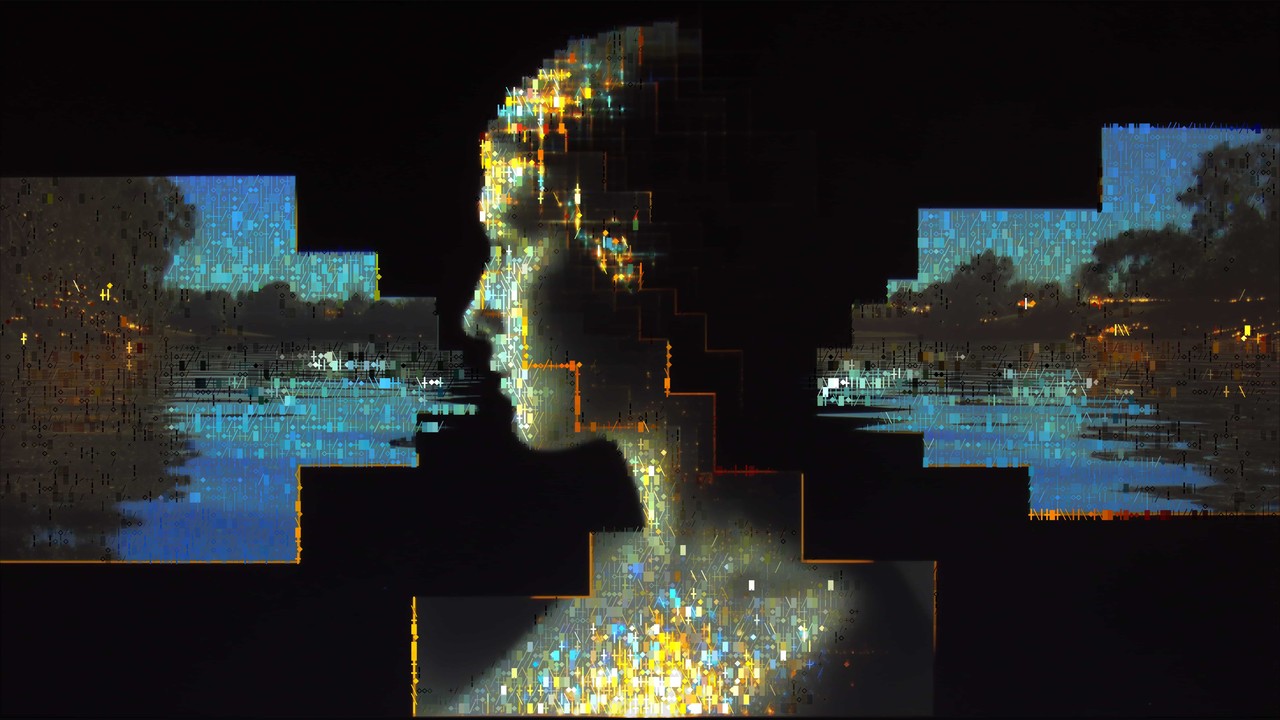
Woman beside water rendered with mixed characters

Carry the result into another context

Use TXT for editable characters, HTML for a preformatted page, PNG for a fixed image, or SVG for scalable text. SVG retains glyphs rather than outlined paths, so its appearance depends on the receiving app’s monospace font.

Try this workflow

A picture you can refine as text

An ASCII art converter gives a familiar picture a different visual language. Direct controls and editable output make it easier to preserve the recognizable parts and choose an appropriate way to share them.

Recognizable outlines

Start with a distinct subject and tune the columns around its silhouette. More detail helps only when the important shape remains readable.

Your choice of texture

Switch between simple, detailed and custom ramps. Choose characters for their visual density and the tone you want the artwork to convey.

Portrait rendered with dense block glyphs

An honest comparison

View the source beside the result to judge what changed. Zoom helps you inspect character texture without losing the full composition.

Editable and visual outputs

Copy text when characters matter, or export PNG when presentation matters. Both outputs come from the version visible in the workspace.

Questions before you start

ASCII Art Generator

Make your picture readable in characters

Load a picture, find the right balance of detail and texture, then export the version that fits your project.

Convert your image